
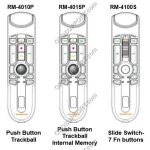
Product description for the RecMics below: Product description Olympus has created a varied product line-up to cater for the demands of any professional environment. RM-4000P (Available in US) RM-4010P (Available Globally) RM-4015P (Available Globally) RM-4100S (Available in EU) RM-4110S (Available Globally) – Push button model, suitable for speech recognition7 customizable function buttons– Allocate shortcuts to […]
Webmaster
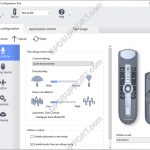
RecMic II Series: RecMic Configuration Settings in Dictation Module (ODMS R8/R7)
This article explains how you can use this tool to configure the RecMic The RecMic Configuration Tool is an application that supports the workflow by using RecMics to control desktop applications. With this software, you can configure RecMic settings and assign functions that control applications to RecMic buttons. The application is free and can be […]
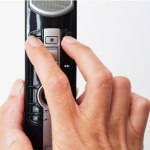
RecMic II Series: RecMic Configuration Tool
This article will document the preset button modes for the new RecMic series. The buttons of the RecMic II are already preconfigured with settings and commands, tailored to Dragon and Windows Speech Recognition software. How to change the modes Press the NEW and INSERT buttons until LEDs from F1 to F4 flash for 15 seconds. […]
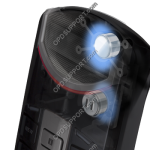
RecMic II Series: Key Features and Benefits
Please see article for a list of key features and benefits for the new range of RecMic devices. + – The best speech recognition accuracy Click to collapse High-quality low-noise microphone unit The new RecMic incorporates low noise omni-directional microphones which are also used in our consumer flagship LS-P1 PCM recorders. The Sound Studio Shock […]
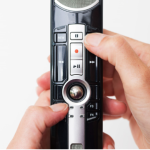
RecMic II Series: Recording Mode
The following article will help you achieve the best possible recording for your environment. In order to achieve good recording quality and speech recognition results, it is important that you select the preset recording mode that best matches your environment. The recording mode controls the directionality and the noise reduction level during recording. Especially during […]
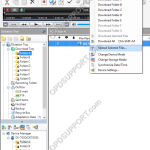
How to upload a dictation to the recorder
This guide will take you through how to upload a dictation to the recorder so the dictation can be edited and downloaded again. Connect the recorder to the PC Select the dictation to upload Click on Device menu and click Upload Selected Files Select a folder destination to upload the files and click OK The […]
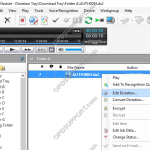
How to edit a dictation
This guide will take you through how to edit a dictation in the Dictation Module software. Note: Ensure you have a recorder connected to the PC to edit the recordings. Right click the dictation you wish to edit and click Edit Dictation. This will launch the dictation in the Recording Window. Press the Record button […]
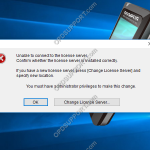
Can’t connect to the license server
When loading the ODMS software that is installed in Workgroup mode you get the error with connecting to the license server. Note: Workgroup mode requires the additional software ODMS for Administrator to be installed in the environment for centralised management of user settings and licenses. Please try the following… 1. Check the license server address […]
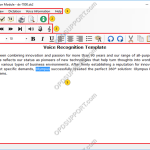
Text Correction overview
This article details the Text Correction overview explaining what each section and button does. If you want to know how to use the Text Correction window then you can follow this guide here. 1. Drop-down Menus 2. File Options 3. Playback Controls 4. Text Formatting tools 5. Transcribed text / editor window 6. Playback […]
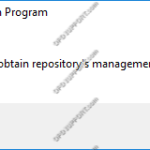
Failed to obtain Repository’s management information
When launching the System Configuration Program you get the error message “Failed to obtain repository’s management information” This issue is normally caused by having insufficient permissions to access the SCPConfig.xml file located in C:ProgramDataOlympusODMSR6SystemConfigurationProgram. Deleting this SCPConfig file may fix the issue as it would recreate the file under the current user. However the issue […]