
The logging function provides a basic output of user actions. Whilst the feature is not a complete workflow-level log. It can provide information such as file movement and changes made to a dictation. To enable logging, follow the instructions below: Tools > Option > Workflow > Logging To output a users actions, tick the Specify […]
Webmaster
Folder Mapping (ODMS)
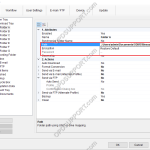
Dictation can be shared over a network by mapping folders in ODMS so that the files are downloaded directly into the network location. Click Tools > Options > Folder Design. Select the folder that will be re-mapped. Click into the Path field and paste/type the network path in to here or click the Drop-down Arrow. […]
Real-time Voice Recognition Settings
This article details how to configure Real-time voice recognition. Note: You must have a Dragon Profile configured with ODMS for this to work please follow the guide here Open ODMS Dictation module and click Tools > Options > Workflow tab > Real-time Voice Recognition from the menu on the side. The options on this window […]
Administrative Recording Settings
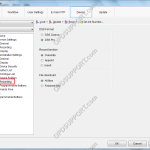
This guide takes you through the more advanced recording settings specific to the professional range mobile recorders such as recording format, recording function and file download that are found under the Administrative Settings Recording Menu. The ODMS Dictation Module or the Device Customisation Program is required in order to configure the advanced recording settings To […]
Author IDs
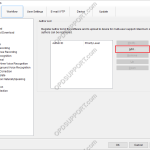
Author IDs allow users to easily identify which user created a particular dictation. To add an Author ID to a device, follow these steps: Open the Dictation Module Go to Tools > Options… > Workflow Click Author Click Add Enter the Author ID and click OK To add more Author IDs, follow the same process. […]
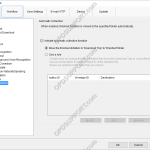
Auto Collection
The auto collection feature moves finished dictations to the Finished folder or to another folder, if specified. Auto collection can be set up by going to: Tools > Options > Workflow > Auto Collection By default the Auto Collection function is already enabled, and set to move finished dictations to the Finished folder. Rules can […]
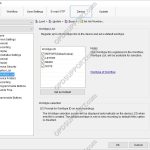
Add Worktype IDs to a device
For this guide, Worktype IDs must have already been added to the Workflow section. See our Worktype IDs article for instructions. To upload Worktype IDs to a device, go to: Tools > Options > Device > Worktype List Select the Device Type and Device from the drop down menus. Click the Load button. If more […]
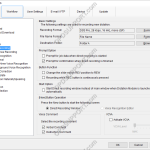
Direct Recording Settings
Direct Recording settings can be customised to allow for greater flexibility and functionality. Settings such as the recording format, folder and filename format can all be customised. How to configure Direct Recording Click Tools > Options > Workflow > Direct Recording Recording Format To change the recording format, click Format… Select the recording format and […]
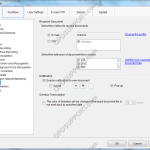
How to enable the Document Receive function
The Document Receive function automatically imports transcribed documents received via e-mail or FTP into the Dictation Module’s Document Tray folder to manage documents.For this function to work you must have either E-mail or FTP profile configured with the Dictation Module. Please click here to configure E-mail or click here to configure FTP. How to enable […]
How to add a document format
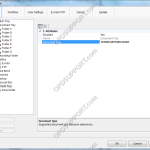
ODMS is capable of displaying various types of document in the document tray. It is also possible to configure ODMS to support additional file formats for enhanced compatibility with different file-types and word processors. How to add a document format Click on Tools > Options > Folder Design > Document Tray. Click in the Document […]