
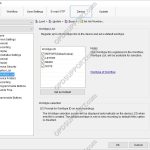
For this guide, Worktype IDs must have already been added to the Workflow section. See our Worktype IDs article for instructions. To upload Worktype IDs to a device, go to: Tools > Options > Device > Worktype List Select the Device Type and Device from the drop down menus. Click the Load button. If more […]
Webmaster
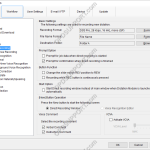
Direct Recording Settings
Direct Recording settings can be customised to allow for greater flexibility and functionality. Settings such as the recording format, folder and filename format can all be customised. How to configure Direct Recording Click Tools > Options > Workflow > Direct Recording Recording Format To change the recording format, click Format… Select the recording format and […]
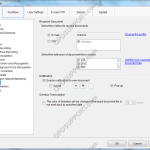
How to enable the Document Receive function
The Document Receive function automatically imports transcribed documents received via e-mail or FTP into the Dictation Module’s Document Tray folder to manage documents.For this function to work you must have either E-mail or FTP profile configured with the Dictation Module. Please click here to configure E-mail or click here to configure FTP. How to enable […]
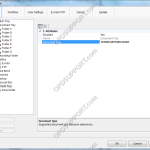
How to add a document format
ODMS is capable of displaying various types of document in the document tray. It is also possible to configure ODMS to support additional file formats for enhanced compatibility with different file-types and word processors. How to add a document format Click on Tools > Options > Folder Design > Document Tray. Click in the Document […]
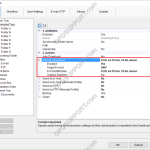
Automatic File Conversion
The software can be set up to automatically convert a file to a different format, once it has been downloaded. Formats a user can convert to using this feature: DSS, DS2, WAV & WMA. How to enable Auto Convert Go to Tools > Options > Folder Design > Select a folder to enable the feature […]
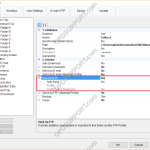
Automatically send dictation via FTP
The ODMS software can be configured to automatically send a dictation via FTP immediately after downloading the file. This document details how to configure the Auto FTP feature. Note: This feature requires that an FTP profile is configured in ODMS. See FTP Setup for instructions. How to enable Auto FTP Click Tools > Options > Folder […]
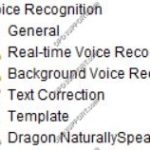
Voice Recognition Settings in ODMS
The ODMS Dictation Module supports Background and Real-time voice recognition. This guide aims to demonstrate the settings available. Note: Dragon Naturally Speaking must be installed with a trained dragon profile. It is recommended that training is completed in full to ensure maximum accuracy. Voice Recognition Modes Real-time Voice Recognition: This mode is used for recording […]
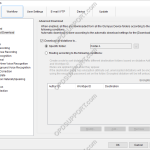
Advanced Download
The advanced download feature can be customised so that all dictations are downloaded into a specific folder or they are routed to different folders based on the Author ID or Worktype ID. How to setup the Advanced Download Option Go to Tools > Options > Workflow > Advanced Download. Tick the Download all dictations to… […]
Add Author ID(s) to a device
For this guide, Author ID(s) must have already been added to the Author section. See our Author IDs article for instructions. Up to 10 Author IDs can be applied to a device (either a DS-3500 or DS-7000). Note: This requires the Dictation Module software to configure the device settings. To set an Author ID on […]
Automatic Updates
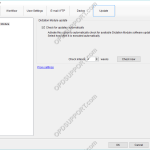
This document will detail how a user can enable the Olympus software to automatically update. How to enable Automatic Updates To enable automatic updates, within the Olympus software: Click Tools > Options > Update > Enable “Check for updates automatically” Set the desired time interval at which the Olympus software will connect to the update […]